

Having a website is one thing. Knowing whether people can actually find it on Google is another. That gap is exactly what Google Search Console solves.
We’ve set this up on dozens of sites. New launches. Old sites. Sites that weren’t showing up at all. When done properly, this is one of the highest-impact actions you can take for SEO.
Below is the exact process I use to add a website to Google Search Console, without fluff.
How to Add a Website to Google Search Console (Step-by-Step Guide)
Step 1: Open Google Search Console
Adding your site to GSC is FREE and easy. 1st you need to visit Google Search Console Page.
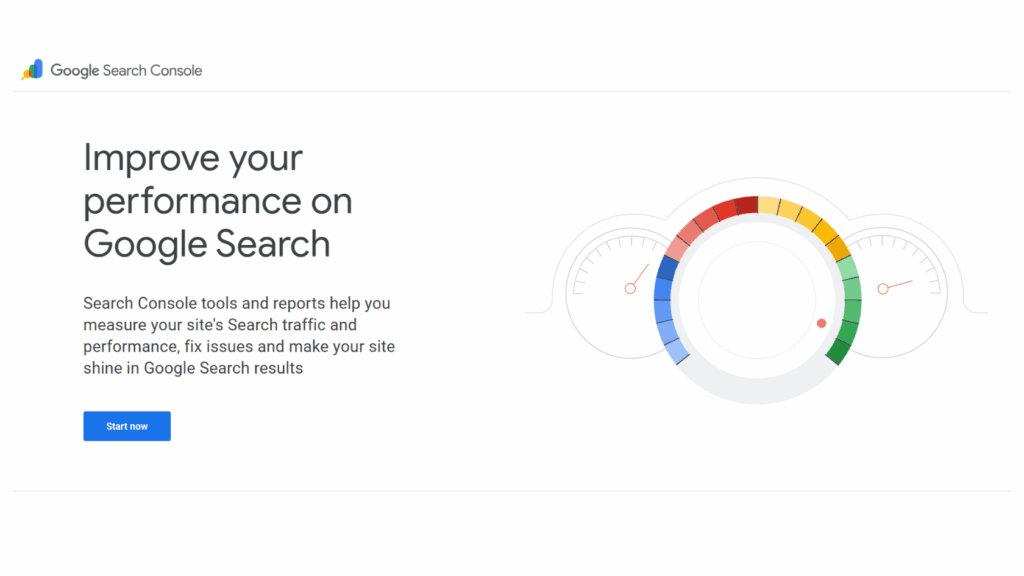
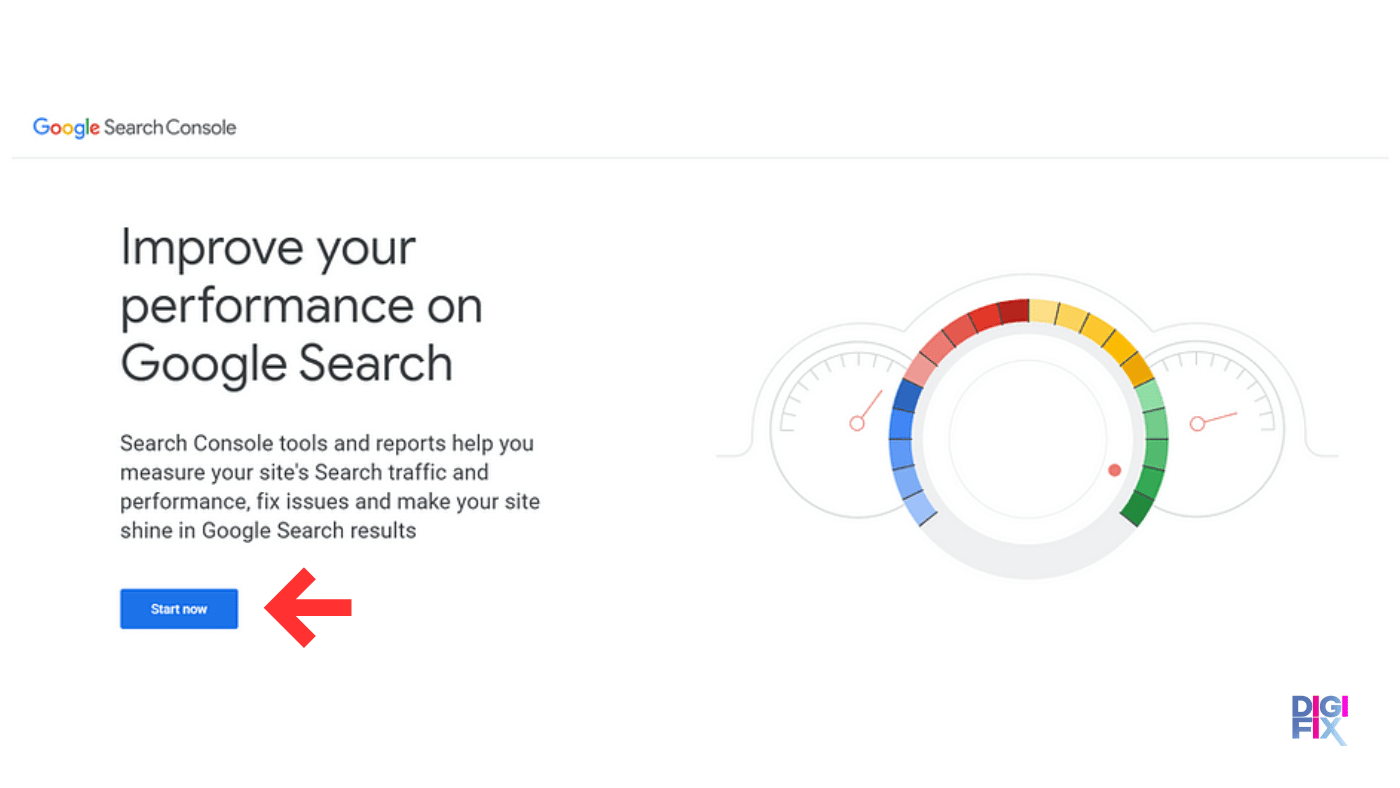
Then, click “Start Now”
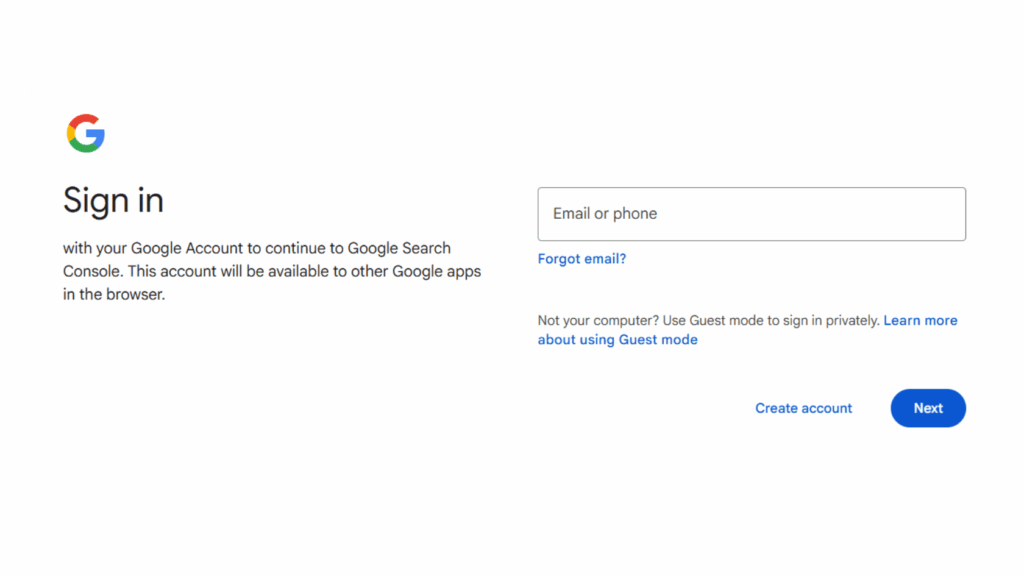
If you haven’t logged into your Google Account, you will be asked to log in first.
Step 2: Add a New Property
- In the top-left corner, click the property selector
Click “+ Add property”

Step 3: Choose the Right Property Type (Critical Step)
You’ll see two options. This choice matters.
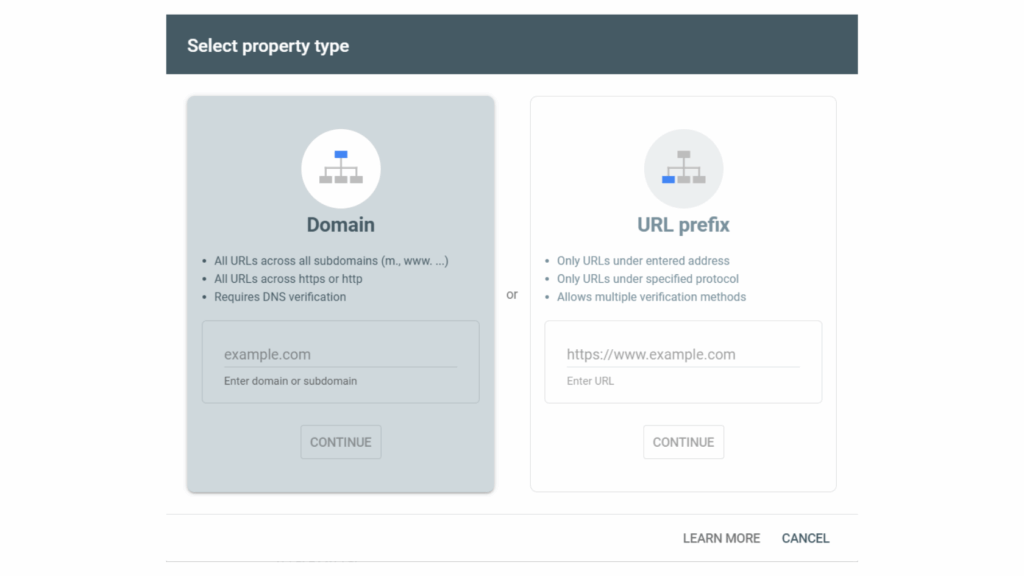
Think of the Domain property as a “wide-angle lens” for your entire online presence, while the URL prefix is like a “magnifying glass” focused on one specific version of your site.
Option 1: Domain Property (The “All-In-One” View)
This is the most modern and comprehensive option. When you add a domain property (Eg: example.com) Google collects data from every possible variation of your site.
This option is best for business owners. If you select the Domain property option, you don’t have to set up multiple properties to get the whole view of your traffic.
You must verify this via DNS records (adding a TXT record to your domain registrar like GoDaddy, Cloudflare or Namecheap).
If you control the domain, this is what I use 90% of the time.
Option 2: URL Prefix Property (The “Specific” View)
This only tracks the exact URL you enter. If you select URL prefix property type, you can only track URLs that start with that exact prefix.
This is Best For:
- If you don’t have access to your DNS settings.
- If you only want to see data for a specific section (e.g., https://digifix.com.au/blog/).
- If you need to use the Disavow Tool (which only works with URL Prefix properties).
Requirement: You can verify this with several easy methods, like an HTML tag, Google Analytics, or uploading a small file to your site.
Which one should you choose?
I recommend setting up a Domain Property first. It ensures you don’t miss any “stray” traffic (like people accidentally landing on the http version of your site).
However, many SEO professionals actually set up both. They use the Domain property for the big picture and a URL Prefix property for the “live” version of their site to get more granular data or use specific tools like the Disavow tool.
Step 4: Verify Ownership
Google needs proof you own the site. Choose the method that fits your setup.
1.DNS Record (Domain Property)
- Copy the TXT record from GSC
- Log into your domain registrar
- Paste it into DNS settings
- Wait a few minutes (sometimes longer)
- Click Verify
Most reliable method. Slightly technical. Worth it.
2.HTML Meta Tag (WordPress / Wix)
- Copy the meta tag from GSC
- Paste it into your site’s <head>
- Or use Yoast / RankMath to add it
- Click Verify
Fast. Beginner-friendly.
3.HTML File Upload (Custom Sites)
- Download the file from GSC
- Upload it to your site’s root folder via FTP
- Click Verify
Old school, but effective.
4.Google Analytics (GA4)
- Works only if GA4 is already installed
- Must be the same Google account
- Often verifies instantly
If this works, take the win.
Step 5: Finalize and Submit a Sitemap
Once you click Verify and see the green “Ownership Verified” message, you are officially connected. To help Google find your pages faster:
- Find Sitemaps in the left-hand menu.
- Enter your sitemap URL (usually sitemap.xml or sitemap_index.xml).
- Click Submit.
From experience, I usually wait 24–72 hours before checking reports.
Adding a website to Google Search Console is not optional if you care about visibility.
I’ve seen sites jump from “invisible” to properly indexed simply because this step was done right. I’ve also seen businesses waste months guessing, when the answers were sitting inside GSC.
Set it up once. Set it up properly. Everything else builds on this foundation.
If you need more information, you can check out Google’s Support page on how to add a website to Google Search Console : Click here.
Why You Should Add a Website to Google Search Console
Adding your website to Google Search Console (GSC) is like giving your site a “dashboard” inside Google’s brain. While you don’t have to use it to be in search results, not having it is like flying a plane without a radar.
Here are the primary reasons why it is essential for any website owner:
- You Get “Direct Communication” from Google
GSC is the only place where Google will talk to you. If your site gets hacked, has a virus, or gets a “Manual Action” (a penalty for breaking Google’s rules), they will send you an email alert and show the details in your dashboard. Without GSC, your traffic could disappear and you wouldn’t know why.
- You Can “Force” Google to See New Pages
Normally, you have to wait for Google’s “crawlers” to find your new blog post or product page naturally.
The “Request Indexing” Tool: With GSC, you can paste a specific link and tell Google, “I just published this, please look at it now.” This can get your content onto Google in minutes instead of weeks.
- See the “Invisible” Keywords
Google Analytics tells you who came to your site, but Google Search Console tells you what they searched for to find you.
- Impressions: How many people saw your site in a search but didn’t click.
- Clicks: How many people actually clicked.
- Average Position: Where you rank (e.g., are you #1 or #45?).
Tip: If a page has high “Impressions” but low “Clicks,” it means people are seeing you but your title isn’t interesting enough. You can use this data to rewrite your titles and get more traffic for free.
- Technical Health & “Mobile-Friendliness”
Google cares deeply about how fast your site loads and how it looks on a phone. GSC provides specific reports on:
- Core Web Vitals: Measures if your site is too slow or “jumpy” while loading.
- Mobile Usability: It will tell you if your text is too small to read on a phone or if buttons are too close together.
- Submit a Sitemap
A sitemap is like a “Table of Contents” for your website. By submitting one to GSC, you make sure Google knows about every single page on your site, even the ones that might be hard for a crawler to find by just clicking links.
Let DigiFix Take Care of Your Website Properly
Setting up Google Search Console is important. But doing only that is not enough to win in search.
This is where DigiFix comes in.
We are a results-driven SEO agency that takes full ownership of your website’s search performance. No guesswork. No half setups.
What We Handle for You?
When you work with DigiFix, we don’t just “add tools”. We build a solid SEO foundation.
We take care of:
- Adding your website to Google Search Console
- Correct domain vs URL-prefix setup (done right the first time)
- Google Analytics (GA4) configuration
- Sitemap submission and index monitoring
- Crawl error detection and fixes
- Page indexing issues before they hurt rankings
- Ongoing performance tracking and insights
This is the work most agencies rush or skip. We don’t.
Why Do Businesses Choose DigiFix?
We’ve seen what happens when SEO is set up poorly:
- Pages never index
- Traffic stalls
- Rankings don’t move
- Business owners fly blind
Our approach is hands-on, technical, and strategic. We treat your website like a growth asset, not a checkbox.
You focus on running your business. We make sure Google can find, understand, and rank your site.
If you want SEO done properly, from day one, DigiFix is your partner.
You can start with a FREE SEO Consultation from our SEO Experts.
Frequently Asked Questions (FAQ)
1.Do I really need an SEO agency to add my website to Google Search Console?
Technically, no. You can do it yourself. In reality, most businesses either set it up incorrectly or stop there. An SEO agency like DigiFix ensures it’s configured properly and connected to a broader SEO strategy, not left as a standalone task.
2.What happens if my website is not added to Google Search Console?
Your website can still appear on Google, but you’re flying blind. You won’t know which pages are indexed, which keywords drive traffic, or whether Google is hitting errors. From experience, this often delays growth and hides serious technical issues.
3.How long does it take after adding my site to Google Search Console?
Setup is immediate. Data usually starts appearing within 24–72 hours. Meaningful insights build over time as Google crawls and indexes more pages.
4.Will adding my website to Google Search Console improve rankings?
Adding a website to Google Search Console does not directly boost rankings. However, it enables indexing, error detection, and optimisation. In practice, this leads to stronger SEO outcomes when paired with proper strategy and execution.
5.What other tools should be connected besides Google Search Console?
At a minimum:
- Google Analytics (GA4)
- XML sitemap
- Core Web Vitals monitoring
DigiFix connects and manages these tools together so nothing operates in isolation.
6.Can DigiFix fix existing Google Search Console issues?
Yes. We regularly take over websites with poor or broken setups. This includes indexing errors, incorrect property types, missing sitemaps, and tracking conflicts. These issues are common and fixable.
7.Is Google Search Console a one-time setup?
No. This is a common misconception. Search Console requires ongoing monitoring. Indexing errors, coverage drops, and technical warnings appear over time. We actively monitor and act on them.
8.Who is DigiFix best suited for?
DigiFix works best with businesses that want SEO done properly and sustainably. If you want visibility, accountability, and long-term growth, not shortcuts, this is where we add value.
9.What’s the next step if I want DigiFix to manage my SEO?
The next step is a discovery call. We review your website, assess your current setup, and outline exactly what needs to be fixed and improved, before any commitments.